Components
Components are created by application developers and others to be used within an EAGLE workflow. The components payload or code exists outside of EAGLE, and may be Application Components such as command line (shell) code, in-line Python and C/C++ dynamic libraries, and MPI code; or they can be Data Components, such as Memory, File, S3 and NGAS. Each of these provide different underlying functionality and integration.
To create a workflow, EAGLE only needs to access JSON representations of each component, which contain enough information to translate the workflow into a graph and then execute it correctly. These JSON files are referred to as component descriptions or Palettes.
During the execution of a workflow, the executables and data wrapped by a component description have to be available to the execution engine; however, during the development of a Palette or translation into a Physical Graph Template, these don’t need to be accessible by EAGLE.
In this documentation, no distinction is made between the component’s external code and its description unless it is necessary for clarity.
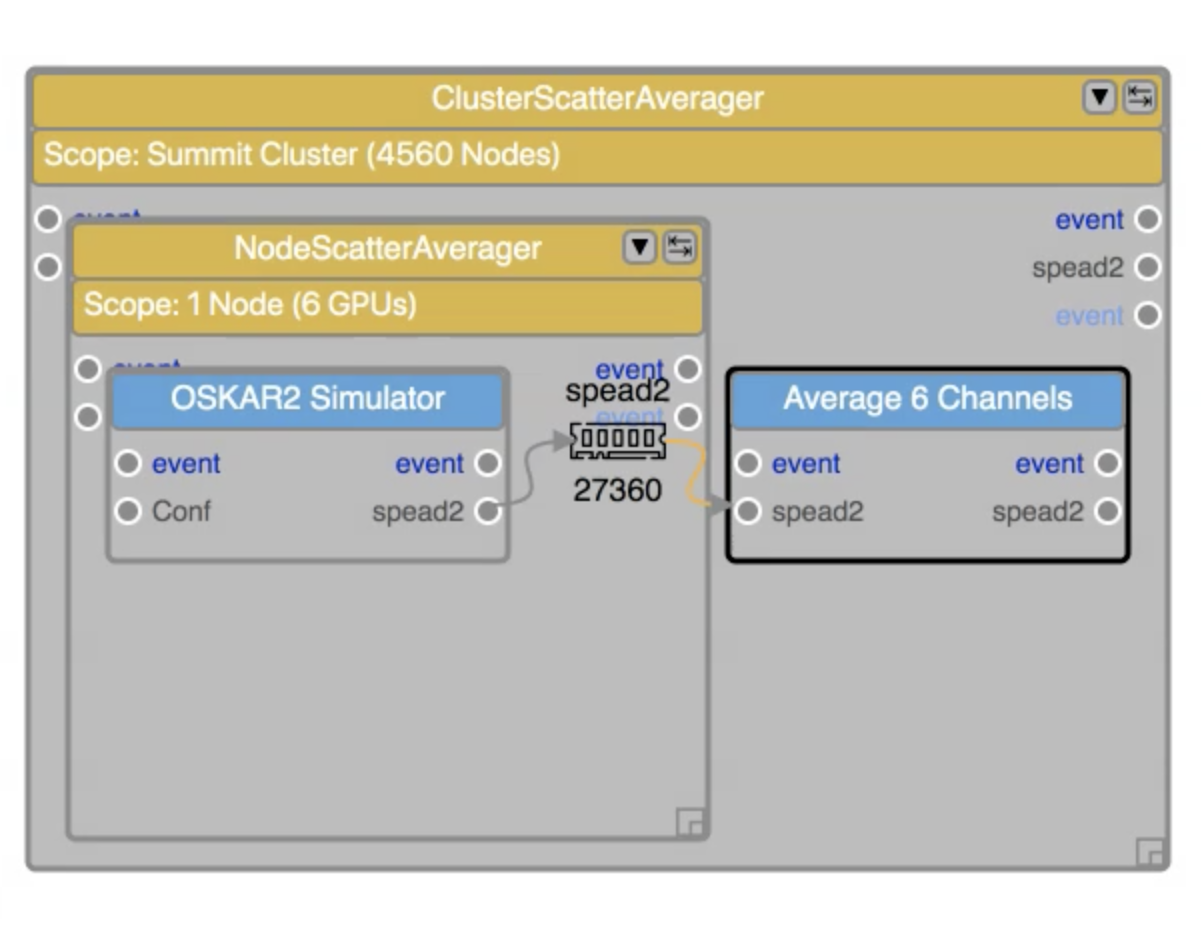
An example of different types of components in EAGLE. Each component has inputs and outputs. They can be arranged as parents and children, and their inputs and outputs can be linked using edges.
Each component has a set of inputs and outputs, as well as exposed parameters. Executable code called by an Application Component may range from the most simple – for example, just a single mathematical operation in Python or C, to a complete and complex workflow all by itself. The inner workings of the Application Component are not handled or even visible within EAGLE.
In combination, components allow the parallel reduction of many individual data sets.
Component parameterisation
In general components require inputs and produce outputs and very often they require some static input parameters and optional keyword parameters as well. An EAGLE component requires two sets of distinct parameters, Component parameters and Application arguments. Component parameters are parameters required for the DALiuGE engine to manage and instatiate the component itself. The Application arguments are parameters exposed by the actual application or payload code. For example, the Application Class Component parameter contains a dot delimited string allowing the DALiuGE engine to import the actual payload code at run-time. In the HelloWorldApp (which is part of the Builin Component palette), the Application Class parameter is set to dlg.apps.simple.HelloWorldApp and readonly. That HelloWorldApp also has an Application argument called Greet, which is set to World and readwrite by default. Changing the value of that argument to Universe will result in an output of Hello Universe.
In addition component parameters and application arguments can be used as an Input port and/or as an Output port. By default that means that the value of that parameter or argument is read and/or written from/to a port or essentially from/to the previous/next component. For our HelloWorldApp that means that the value for Greet could be generated by another component and then fed into the actual application. The whole example, including some paralellism, can be explored directly in EAGLE, the following is just a screenshot.

An example of different types of components in EAGLE. Each component has inputs and outputs. They can be arranged as parents and children, and their inputs and outputs can be linked using edges.
This graph is using two Python components String2JSON and the HelloWorldApp It also uses a Scatter and a Gather construct. String2JSON generates a JSON string using the value of an Application argument called string. In the example the value is an array with 6 values. The Scatter construct is splitting this up 6-ways, where the number 6 is a Component parameter of the Scatter construct and can be changed there. Inside the Scatter there is first the Element memory component, which is passed on to the HelloWorldApp as the value for the Application argument Greet. The HelloWorldApp is directed to write to a Greeting memory component. That Greeting component is used as an input to the Gather, which has a Component parameter called Number of inputs set to 3. This means that it is gathering 3 inputs and writes those inputs to the File component inside the Gather. Since there are 6 inputs from the Scatter, this will result in two Files being generated in order to gather all the inputs. As a final result there will be two files inside the Gather each containing three greetings from the original list generated by String2JSON. Note that the File component is not specifying an absolute name or path in its Component parameter settings. In this case DALiuGE will generate a unique filename and place that in the associated session directory at run time. That way any files generated during a workflow will not overwrite each other and it is thus recommended to leave that Component argument empty. Note also, that DALiuGE allows to exchange data component types, e.g. from File to Memory without the application needing to be changed (this does not work for Bash components, since they can’t read or write from/to memory).
Creating Components for Docker Images
The process for generating component descriptions for applications contained in Docker images is as follows:
Locate the image you wish to use on Docker Hub. For example, the ICRAR images are stored at https://hub.docker.com/u/icrar
Create a new graph and then create one Docker node from the Template Palette

A new graph containing a single Docker node
Click the node to modify its attributes:
The “Image” field should contain the name of the image, for example, icrar/leap_cli
The “Tag” field should contain the image tag, for example, 0.8.1.
The “Digest” field should contain the hexadecimal hash of that version.
The “Command”
The “User”
The “Ensure User And Switch”
The “Remove Container”
The “Additional Bindings”
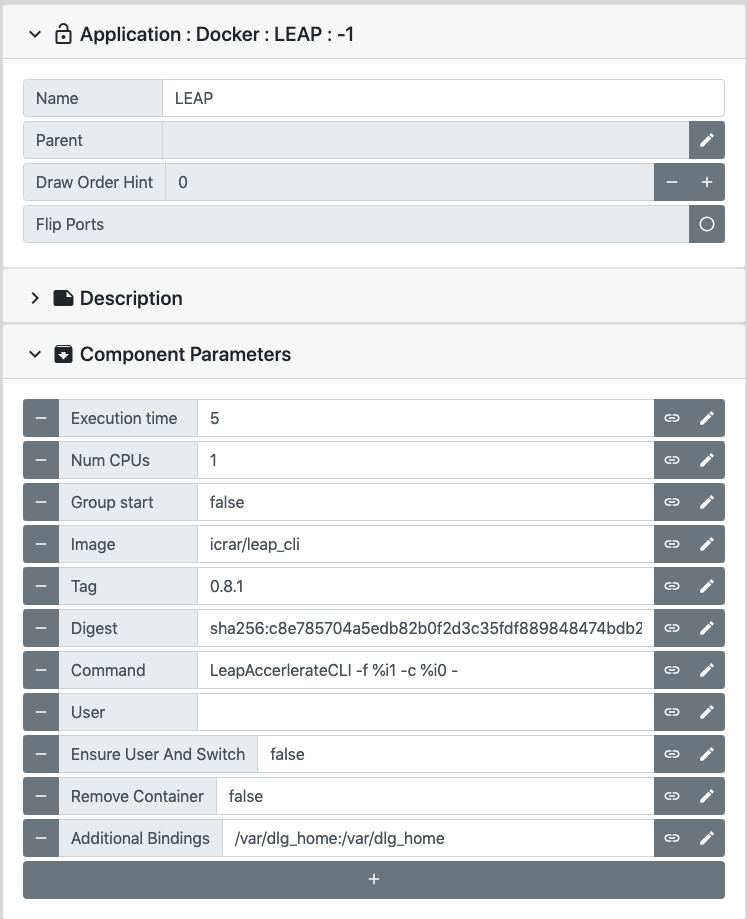
Modify the Docker node parameters with data from the Docker image
Important Notes on Docker Images
DALiuGE can only execute applications from Docker containers that satisfy the following requirements:
pack a Bash shell (/bin/bash)
pack /usr/bin/cat
pack /etc/passwd
It is also recommended to pack /usr/bin/ls.
Linking Components with Edges
Within EAGLE, an output port from one component may be connected to the input port of another component via an edge. This is illustrated graphically by an arrow linking the two. An edge represents an event triggered by one component that in turn triggers other components to be processed.
It is only possible to link components that meet certain criteria, and some edges are inadvisable as they may affect performance. EAGLE provides error and warning messages when these edges are created.
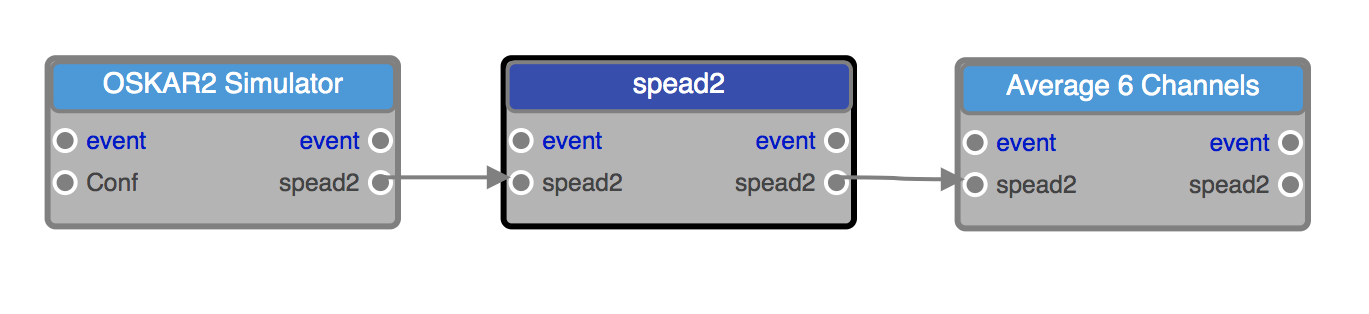
Here three components are linked together with edges.
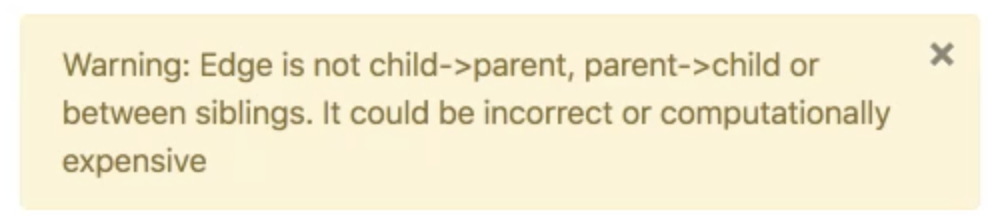

A warning message (above) and an error message (below) caused by the creation of an edge that may affect performance or is invalid.
Environment Variables
DALiuGE and, by extension, EAGLE support globally accessible environment variables in the form of EnvironmentVars components.
These components act as a globally available key-value store.
Other drops’ parameters can reference parameters specified in this component. The translator and runtime engine handles filling these values in during workflow execution.
Importantly, each EnvironmentVars component in a graph needs a unique name to avoid variable aliasing.
Reference a store’s variable in another component using the following syntax:
$store_name.var_name
For example, consider a store with the name ‘environment_vars’ and parameter ‘scratch_dir: ‘/users/me/scratch’’.
A second drop could reference this value in the parameter ‘working_dir’ by setting the parameter field to $environment_vars.scratch_dir
Dynamic getting and setting of such variables are currently unsupported; they remain static variables, an editor accessible replacement for commonly used configuration files.